

Turn Manager
A clear turn order. A calmer salon.
See technician turns, manage waiting guests, and keep your front desk working from one shared view.

The whole day’s rotation, on one board.
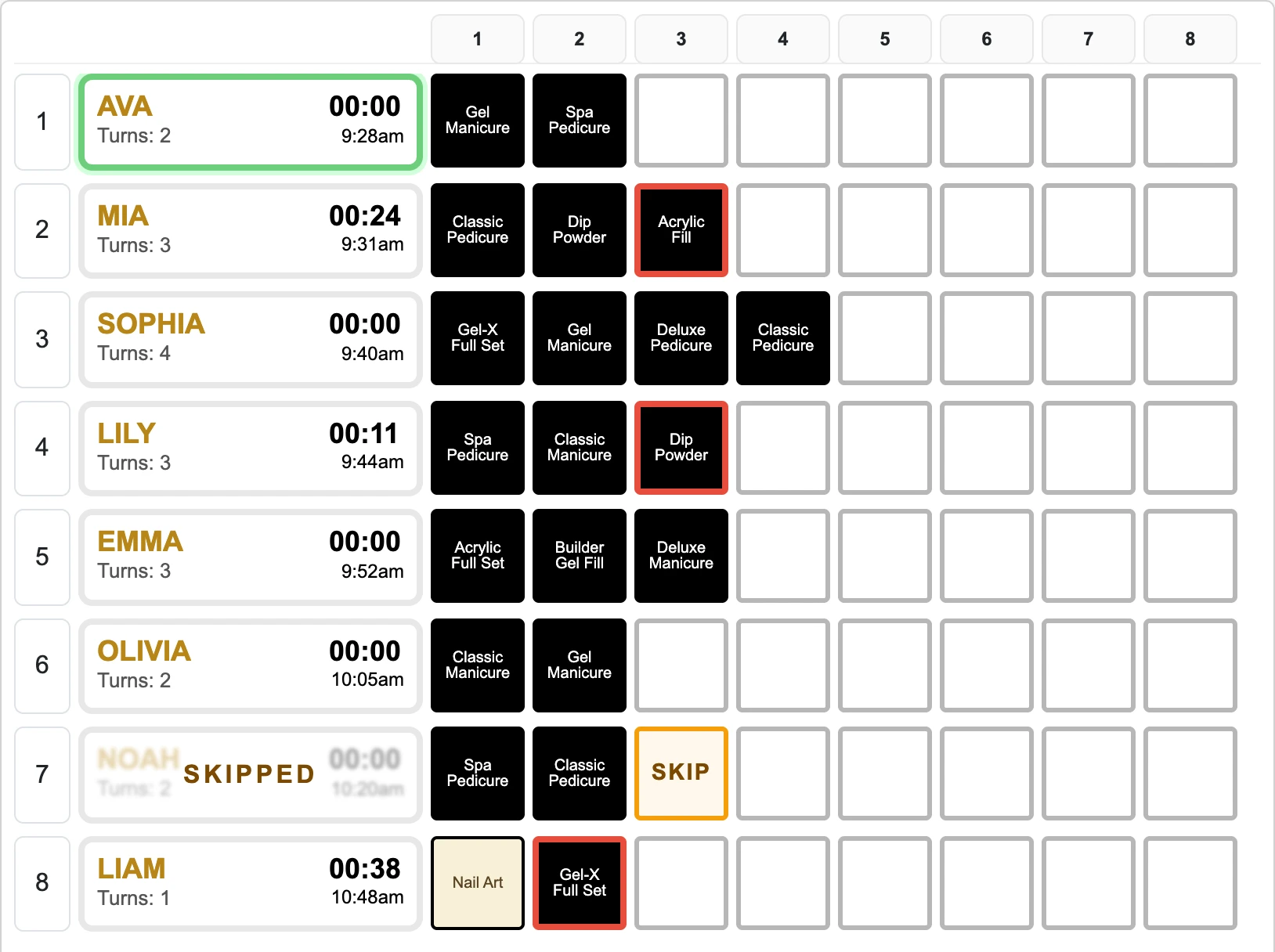
Replace the whiteboard with a shared record of the day. As guests are assigned and services finish, connected salon screens update together, so everyone can check the same rotation.
01 / The rotation
Know where every technician stands.
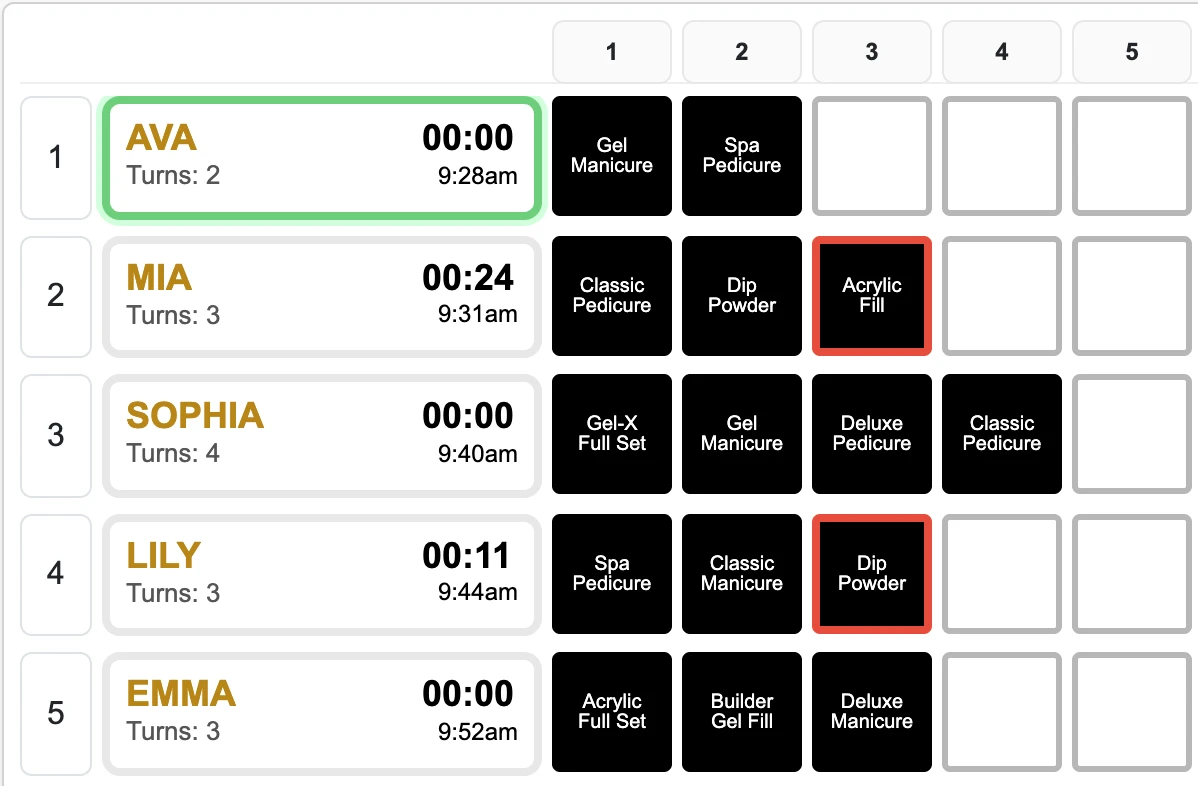
A row for each technician. A count beside every name. Numbered columns make the day’s turns easy to follow without keeping a separate handwritten board.
- Every count in the open
- Each technician’s turns sit beside their name, so the order is something the team can check, not take on faith.
- Sign-in times on record
- Each row shows when that technician signed in, so no one has to ask who arrived first.
- The same order everywhere
- The front desk and the floor see the same rotation, updated as turns are assigned.
02 / The guest queue
Follow each guest from waiting to done.
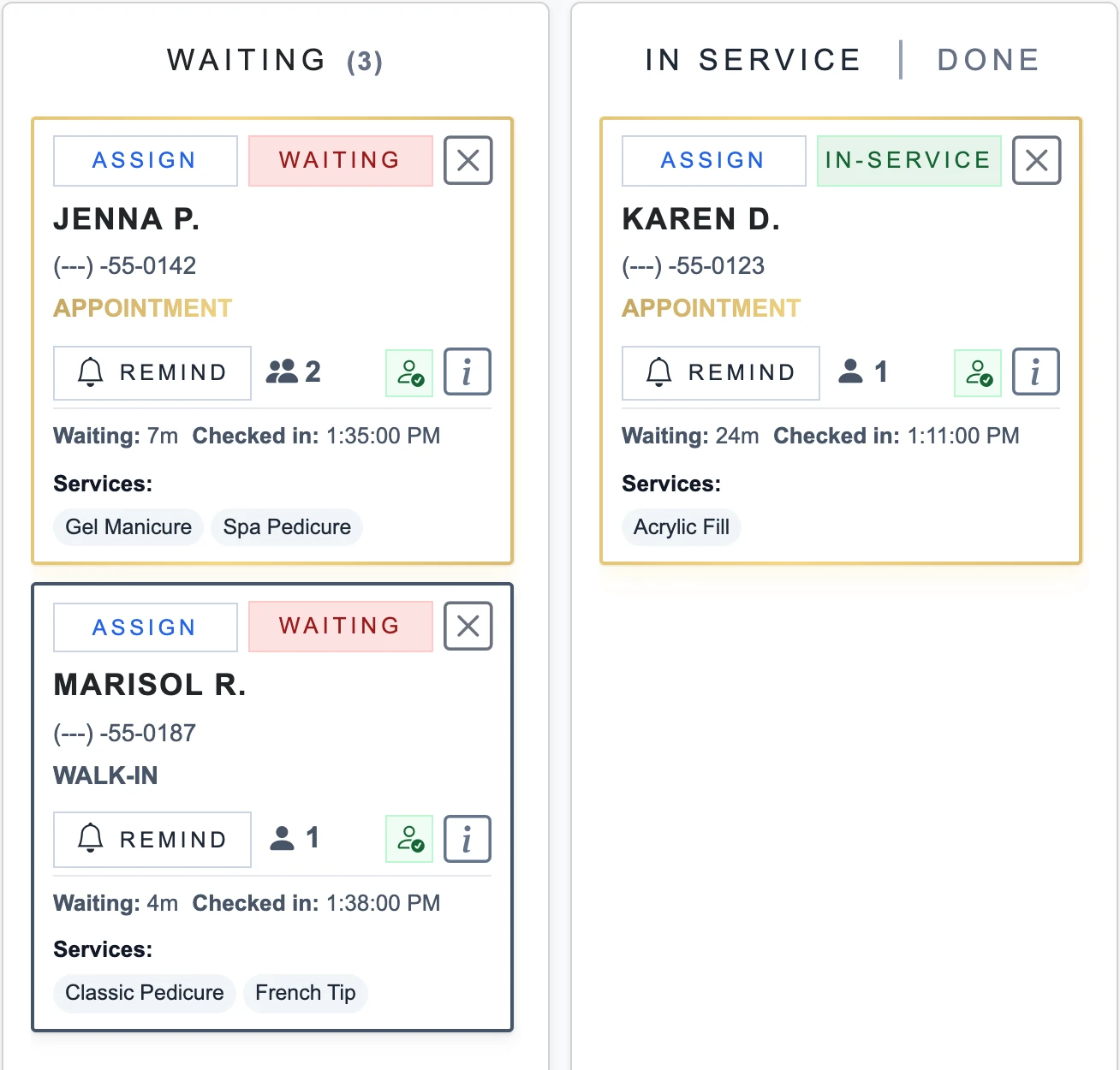
Keep walk-ins and appointments together, with separate views for guests waiting, in service, and done. Each card brings the details the front desk needs into view.
- See the visit details
- Check requested services, party size, check-in time, and waiting duration before assigning.
- Assign from the queue
- Start a guest assignment directly from their card.
- Send a reminder
- Use Remind to send an SMS to a guest with a valid phone number and recorded SMS consent.
03 / Services & availability
Find available technicians for the service ahead.
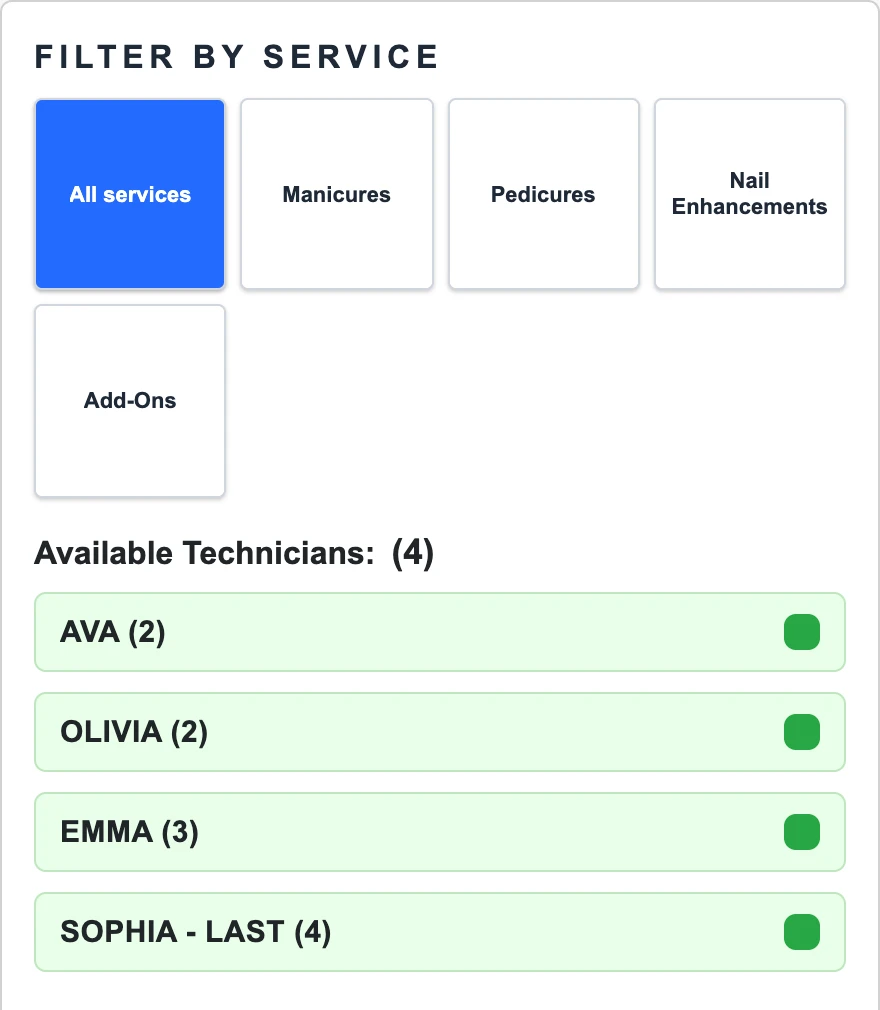
Choose a service category to narrow the available list using the salon’s configured technician skills. Busy and temporarily skipped technicians stay out of the available list.
- Start with the service
- Browse manicures, pedicures, nail enhancements, and add-ons in the salon’s service menu.
- Choose an available technician
- Selecting a name focuses their next empty turn cell on the board.
- Keep the front desk in control
- If a selected service is outside a technician’s configured skills, Aura shows a warning and lets staff decide whether to proceed.
04 / A focused assignment
Keep the next assignment in view.
The board separates the next technician in the rotation from the technician you are selecting. Choose a turn cell, then choose a service to work with that selection.
- Green · Next in rotation
- Ava is next until she’s given a guest; then the green moves to Olivia.
- Blue · Current selection
- The turn cell the front desk is filling. Choose a service and it becomes that technician’s next turn.

What the turn board handles
Your salon. Your turn rules.
Set the rotation around the way your team works, with room for breaks and changes during the day.
Set the rotation
- Turn columns you set
- Set the board to the number of turn columns your salon counts with, from one to forty.
- Late turn
- Technicians who sign in after your cutoff start the day with a turn already counted. Sundays can use their own time.
Handle the day
- Temporary skip
- Hold a technician out of the rotation for a break, then put them back without rebuilding the order.
- Service skills
- Aura flags a service a technician is not set up for before it is assigned, and still lets the front desk proceed.
Stay connected
- Every screen in step
- The board streams changes to connected salon screens instead of waiting for someone to refresh.
- Assignment options
- Assign manually by default, or enable automatic appointment assignment when appointment features are available.
Frequently asked questions
What happens to the turn when a guest checks out?
Closing the ticket at checkout completes the matching entry on the board, so the technician’s turn does not have to be cleared by hand.
Can we reset the board between days?
Yes. Reset Turns clears the counts and releases guests back to unassigned while keeping the waiting list. Start Over clears the board and the waiting list together.
How does Aura decide who is next?
Aura lists the available technicians (anyone not with a guest and not on a temporary skip) by whole turns, fewest first, so a half turn never moves anyone down the list. When whole turns are tied, the technician higher on the board goes first.
Does every service count as a full turn?
No. Each service has its own turn value in half-turn steps, so a quick add-on can count as half a turn or none. Services also carry a separate appointment turn value, so a booked visit can count differently from a walk-in.
What if a turn is entered by mistake?
The front desk can clear a single turn box instead of resetting the board. Salons can require the admin password for clearing a box, resetting turns, or starting over.
Can we see only the technicians who do a certain service?
Yes. Filter the available list by service or service category to see just the technicians set up for it, still in turn order.
See how Turn Manager fits your salon
Walk through your salon’s turn rules with an Aura specialist.